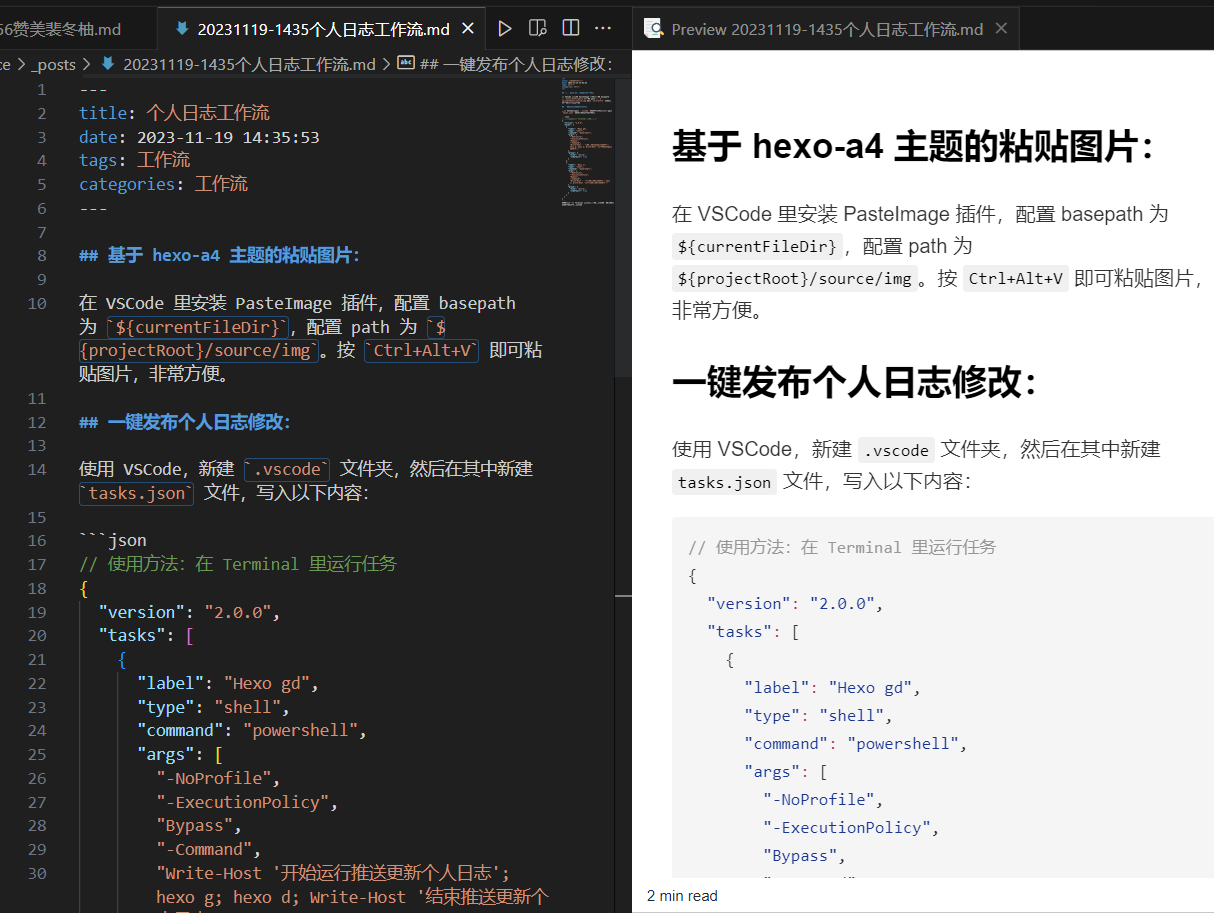
通用的日志工作流 一键发布个人日志修改 使用 VSCode,新建 .vscode 文件夹,然后在其中新建 tasks.json 文件,写入以下内容:
1 2 3 4 5 6 7 8 9 10 11 12 13 14 15 16 17 18 19 20 21 22 23 24 25 26 27 28 29 30 31 32 33 34 35 36 37 38 { "version" : "2.0.0" , "tasks" : [ { "label" : "Hexo gd" , "type" : "shell" , "command" : "powershell" , "args" : [ "-NoProfile" , "-ExecutionPolicy" , "Bypass" , "-Command" , "Write-Host '开始运行推送更新个人日志'; hexo g; hexo d; Write-Host '结束推送更新个人日志';" ] , "group" : { "kind" : "build" , "isDefault" : true } } , { "label" : "Hexo s" , "type" : "shell" , "command" : "powershell" , "args" : [ "-NoProfile" , "-ExecutionPolicy" , "Bypass" , "-Command" , "Write-Host '开始本地部署个人日志'; hexo s; Write-Host '结束本地部署个人日志';" ] , "group" : { "kind" : "build" , "isDefault" : true } } ] }
这样,通过在 Terminal 里选择任务运行,即可一键完成个人日志的修改和发布。
实时浏览 Markdown 格式 在 VSCode 里安装 Markdown Preview Enhanced 插件,在 .md 文件里右键选择 Markdown Preview Enhanced 即可实时浏览 Markdown 样式。
内嵌播放器 Markdown语法 | 插入图片、视频、音乐
基于 hexo-a4 主题 和之前我用notepad手打路径,拖动粘贴图片到文件夹里,再开shell部署完全不一样
基于 hexo-a4 主题的粘贴图片 在 VSCode 里安装 PasteImage 插件,配置 basepath 为 ${currentFileDir},配置 path 为 ${projectRoot}/source/img。按 Ctrl+Alt+V 即可粘贴图片,非常方便。
修改首页、文章的名字 记住这里有个配置文件,要把它注释掉
新建文章的task 1 2 3 4 5 6 7 8 9 10 11 12 13 14 15 16 17 18 19 20 21 22 23 {"label" : "新建文章" ,"type" : "shell" ,"command" : "powershell.exe" ,"args" : ["-NoProfile" ,"-ExecutionPolicy" , "Bypass" ,"-File" , "${workspaceFolder} /.vscode/CreateArticle.ps1" "options" : {"cwd" : "${workspaceFolder} " "group" : {"kind" : "build" ,"isDefault" : true "presentation" : {"reveal" : "always" ,"focus" : false ,"panel" : "shared" "problemMatcher" : []
1 2 3 4 5 6 7 8 9 10 11 12 13 14 15 16 17 18 19 20 21 22 23 24 25 26 27 28 29 30 $scriptDir = Split-Path -Parent $MyInvocation.MyCommand.Path $filePath = Join-Path $scriptDir ("..\source\_posts\{0:yyMMdd}-My-Article.md" -f (Get-Date)) $utf8NoBOM = New-Object System.Text.UTF8Encoding $false $streamWriter = New-Object System.IO.StreamWriter($filePath, $false, $utf8NoBOM) @" --- title: MyArticle date: $(Get-Date -Format "yyyy-MM-dd HH:mm:ss" ) tags: Workflow categories: Workflow --- Please help me improve the formatting of the following Markdown document: Start writing the content of your article here. "@ | ForEach-Object { $streamWriter.WriteLine($_) } # Close the StreamWriter $streamWriter.Close()
常用prompt 优化Markdown排版 1 Please help me improve the formatting of the following Markdown document:
一些bug 设置正确的端口
1
2
git config --global http.proxy "localhost:7890" --global https.proxy "localhost:7890"
取消的方式
1
2
git config --global --unset http.proxy --global --unset https.proxy